

1
Complete your club profile
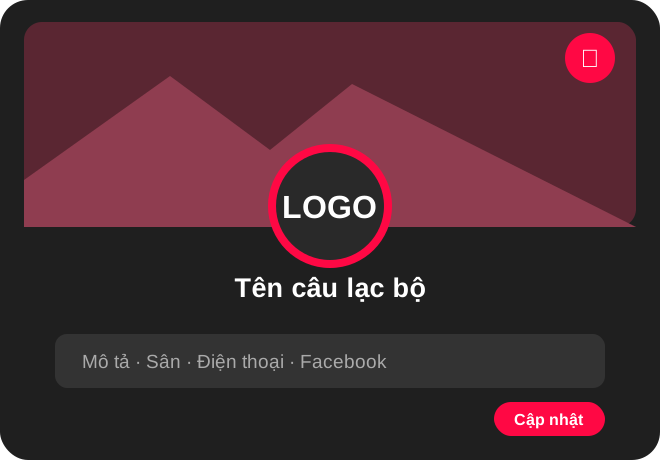
Add a logo, banner, description, home court, phone number, and Facebook page so members can easily recognize your club.
Club page → Club settings → tap the logo or pencil icon on the banner
Eight simple steps to complete your club, invite members, and record your first matches.
Add a logo, banner, description, home court, phone number, and Facebook page so members can easily recognize your club.
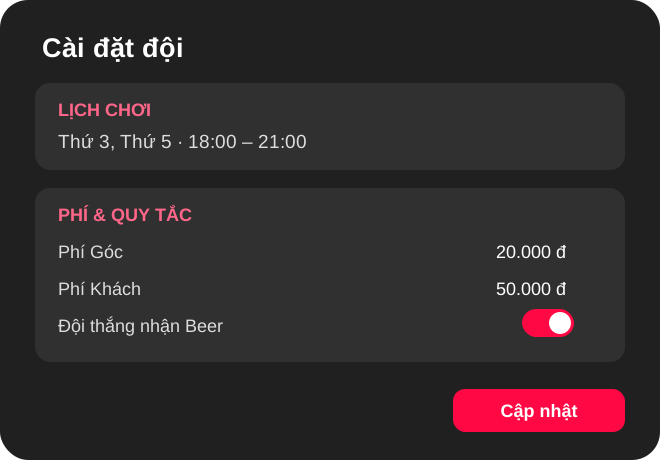
Set regular playing days and times, original fee, guest fee, love fee, joining fee, opening balance, and beer rules.
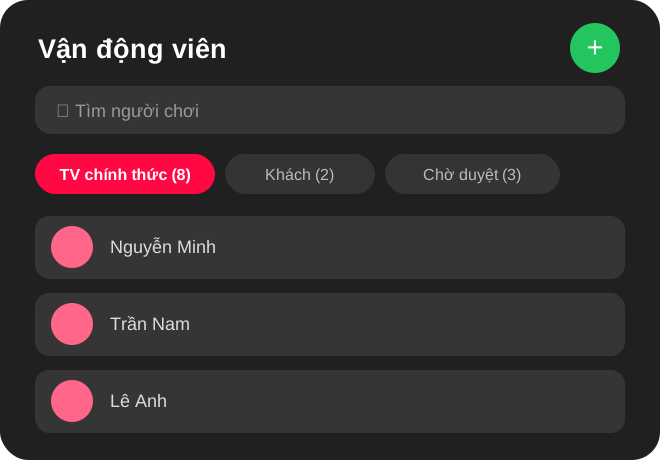
Search for players and add them to the team. For new requests, open Pending, select the player, and enable Official status.
Select players on both sides, enter each set score, verify beer settings, and save. Results update match history and rankings.
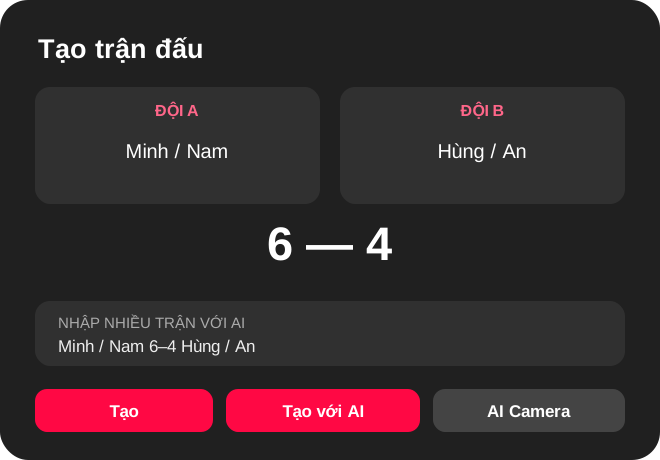
Enter one match per line. AI identifies players and scores for your review before confirmation. Example: Minh / Nam 6–4 Hung / An.
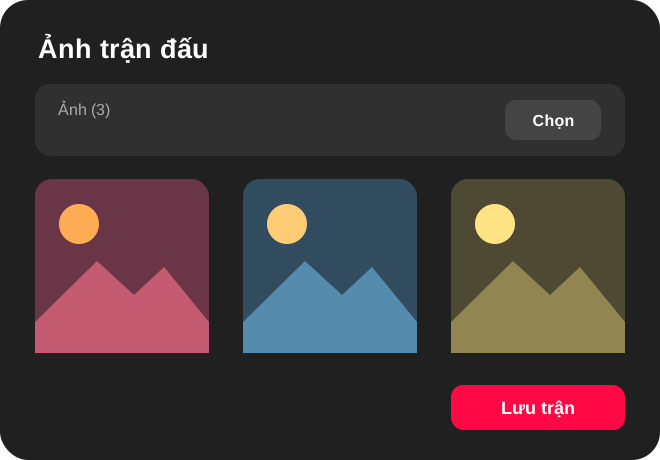
While creating or editing a match, select photos from your device, review them, and save the match.
Send the QR code through group chat or social media so players can open the club and request to join.
Regularly review schedules, fees, member statuses, and contact details to keep reports accurate.
Start with your logo, team settings, and first members.
On a computer, use the web buttons below. The app button is intended for phones and tablets.Continue on the web, or install RacketGo for the full mobile experience.